 QuickPLS
 Pro for Windows
Install through Microsoft Store, then choose an access offer when you open the app.
Get QuickPLS Pro
Follow the steps below to install QuickPLS Pro, activate your access and start working with a practice project.
Install through Microsoft Store, then choose an access offer when you open the app.
macOS is coming soon. Request a launch email or follow product updates.
You need an x64 PC with Windows 10 build 19045 or later, Microsoft Store, and an internet connection for installation and activation. Have your Microsoft account ready if the Store asks you to sign in. Check system requirements.
Windows installation
Keep an internet connection available for installation and access activation. The Store’s button wording can vary by device and region.
Use an x64 Windows PC running Windows 10 build 19045 or later, with Microsoft Store available. The Store checks whether your device is compatible. On a university-managed computer, your IT team may need to enable Store installation.
Select the Microsoft Store badge above. It downloads Microsoft’s installer for QuickPLS Pro. You can also visit the official Store listing or search for QuickPLS Pro in Microsoft Store. Check the complete app name and publisher, Mohd Naved.
Open your browser’s downloads list or your Downloads folder, then open the installer you just downloaded from Microsoft. Follow its on-screen instructions. If you used the Store listing instead and your browser asks to open Microsoft Store, continue there.
Keep the installer open while it downloads and installs QuickPLS Pro. If you are installing through the Store app, select Get or Install and sign in if prompted. Wait until installation is complete. If the Store shows Open, the app is already installed.
Select Open in Microsoft Store. You can also open the Windows Start menu, search for QuickPLS Pro and select the app. Its access screen guides you through the available offers.
For a first look, select the separate 30-day free Launch Access Pass offer while it is available. Or choose monthly, quarterly or annual access. Follow the Microsoft prompts to activate the free offer or buy your chosen plan. Use the Microsoft account you will use for QuickPLS, and check the price and terms before confirming.
The free Launch Access Pass does not automatically become a paid subscription. Paid subscriptions renew under Microsoft’s terms until cancelled. Compare access options.
After Microsoft confirms your offer or purchase, return to QuickPLS Pro and wait for it to confirm your access. Keep your internet connection available for this step. Continue to the home screen, where you will find New project, Open project and Sample projects. If the access screen remains, use the help notes below.
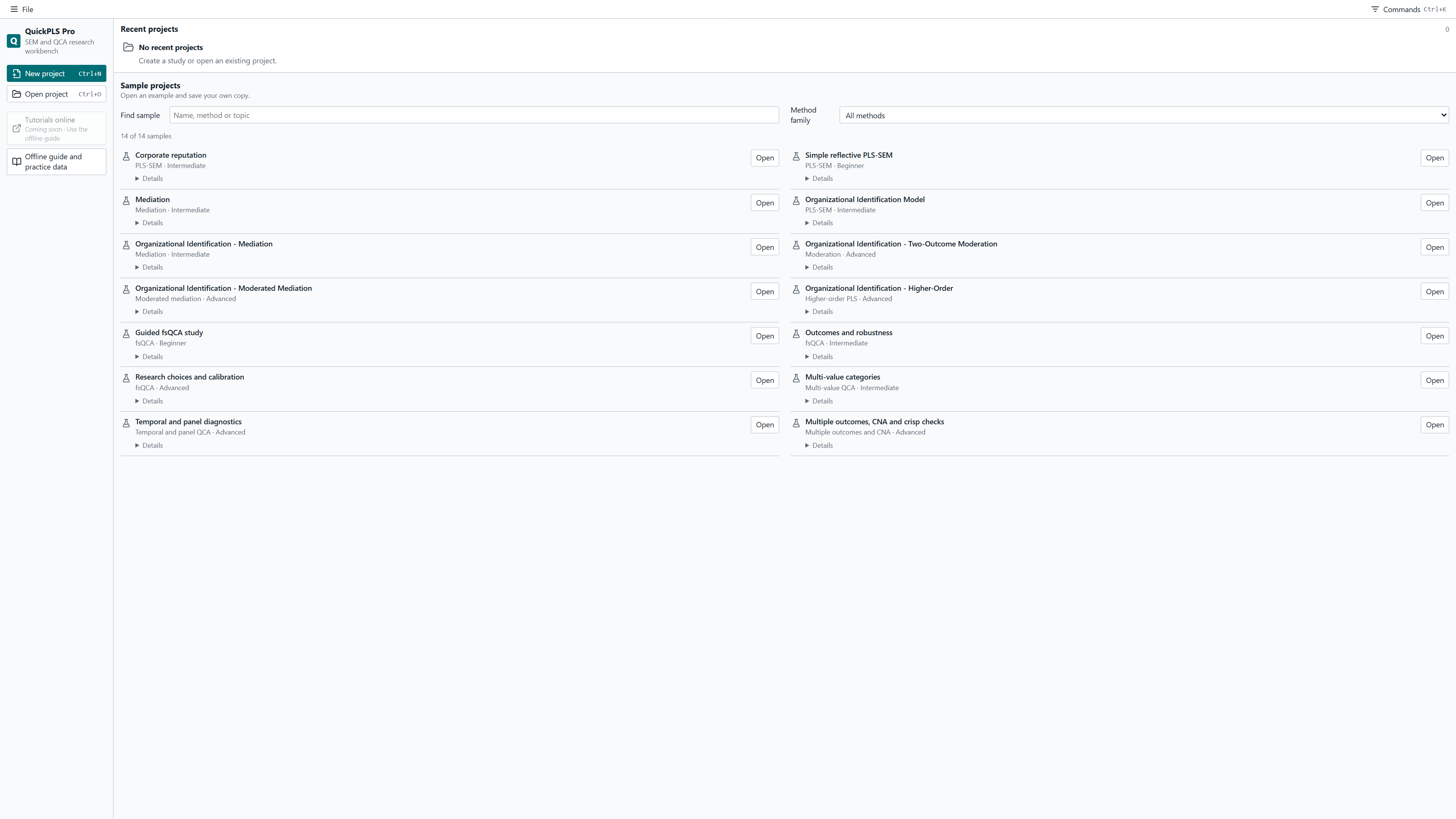
Under Sample projects, select Open beside Simple reflective PLS-SEM. The sample opens for review. Select Save Project Copy and choose a folder before making changes. The example below shows the sample model and the copy button above it.

You can also import a teaching dataset and follow its linked method guide. A CSV contains data; a saved QuickPLS project includes the model and its available results.
Open the Windows Start menu, search for Microsoft Store and launch it. Search for QuickPLS Pro there. On a managed computer, ask your IT team whether Store apps are permitted.
Check your internet connection and the device requirements shown on the product listing. Follow Microsoft’s installation troubleshooting for the Store error you see. Record the error message if you need further help.
Check that Microsoft Store is signed in with the same account used to activate the offer, keep the computer online, and close and reopen QuickPLS Pro. If access is still not recognised, contact us with the offer name and the exact message shown. Do not send passwords or payment-card details.
Use Microsoft Store’s app-update controls to check for available updates. The QuickPLS product update tracker explains what changed. Save your work before restarting the app after an update.
For the Store’s general installation process, see Microsoft’s download guide.
